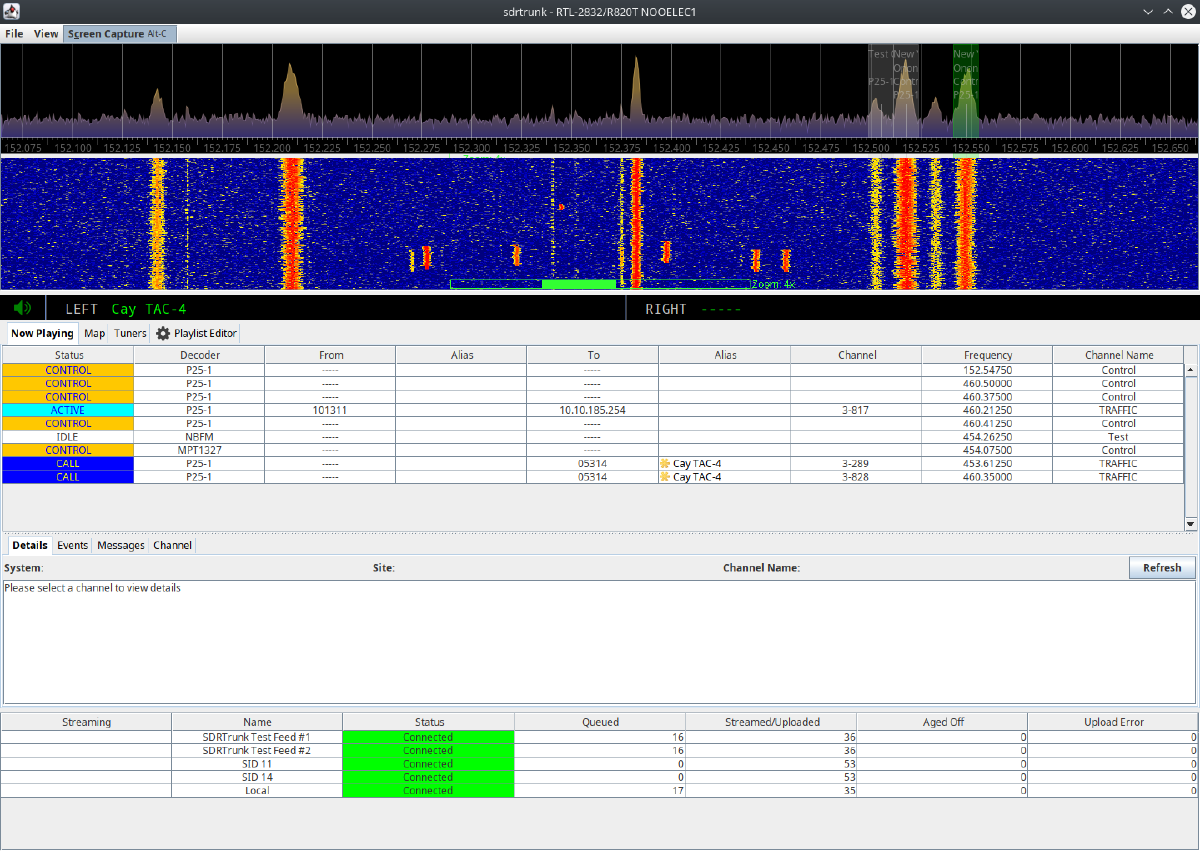
Listening to unencrypted police, fire, EMS, and other public safety radio transmissions is generally legal in the United States for personal, private use, as these are public airwaves. However:
- Do not rebroadcast, record, or share any audio, talkgroup details, or operational information publicly. This can violate federal wiretapping laws (18 U.S.C. § 2511) or state regulations in some jurisdictions.
- Respect encryption: Modern P25 Phase II systems are often encrypted; attempting to decrypt is illegal under the Electronic Communications Privacy Act.
- Check local laws: Some states or localities restrict scanner use while driving or impose additional rules. Verify regulations in your area
For this, we need a software decoder and an SDR to work. Here is how I have set up my environment:
- OS: Linux
- Distro: pentoo
- Laptop: Framework 13
- Software Decoder: SDRTrunk
- Software-Defined Radio(SDR): Nooelec NESDR SMArt v5 // Amazon Link
New to Pentoo? See my Pentoo installation post.
SDRTrunk#
SDRTrunk is an open source software decoder for monitoring trunked radio systems using Software-Defined Radios (SDRs).
Downloading SDRTrunk#
The first thing we need to do is download it from the official repository.
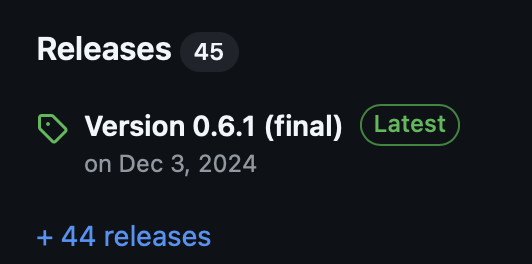
Get the latest release version under Releases
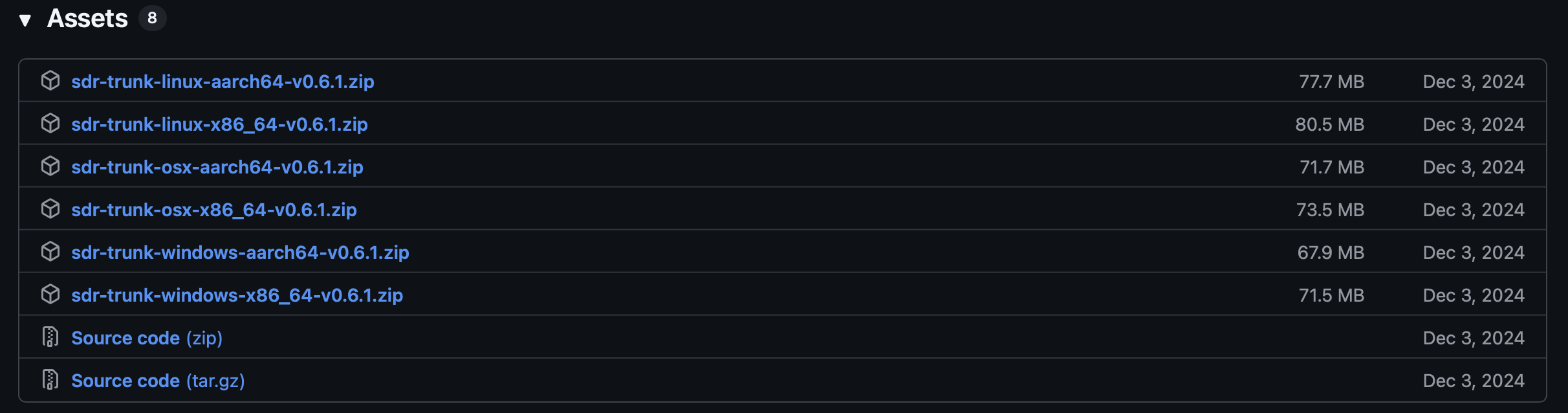
Under Assets, we have all the compiled and compressed binaries for that version. Since we are on Pentoo x86_64 (64-bit) we will download the sdr-trunk-linux-x86_64-v0.6.1.zip file
Now that we have it downloaded, we need to unzip the file
unzip ~/Downloads/sdr-trunk-linux-x86_64-v0.6.1.zip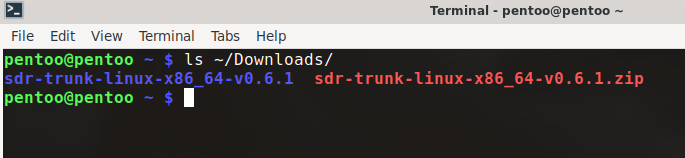
The sdr-trunk binary can be found in sdr-trunk-linux-x86_64-v0.6.1/bin/

We can launch it by moving to the directory and running ./sdr-trunk or just
./sdr-trunk-linux-x86_64-v0.6.1/bin/sdr-trunkMake sure you plug your SDR directly into the usb port of your laptop before launching sdrtrunk
Setting up SDRTrunk#
After you start sdr-trunk for the first time you will get this screen.
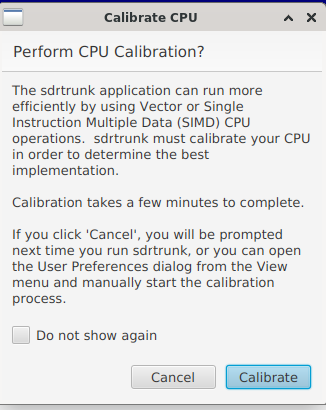
You should read it, and then select Calibrate.
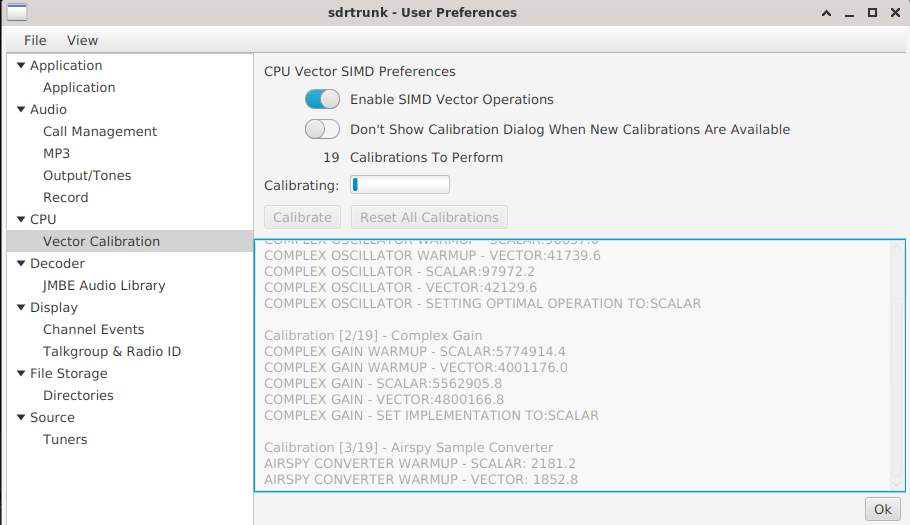
While it’s calibrating, you shouldn’t do anything. Wait until it’s finished.
Then restart sdr-trunk, after the calibration is done.
Now, go to View > User Preferences > JMBE Audio Library and click on Create Library, you will get the screen below.
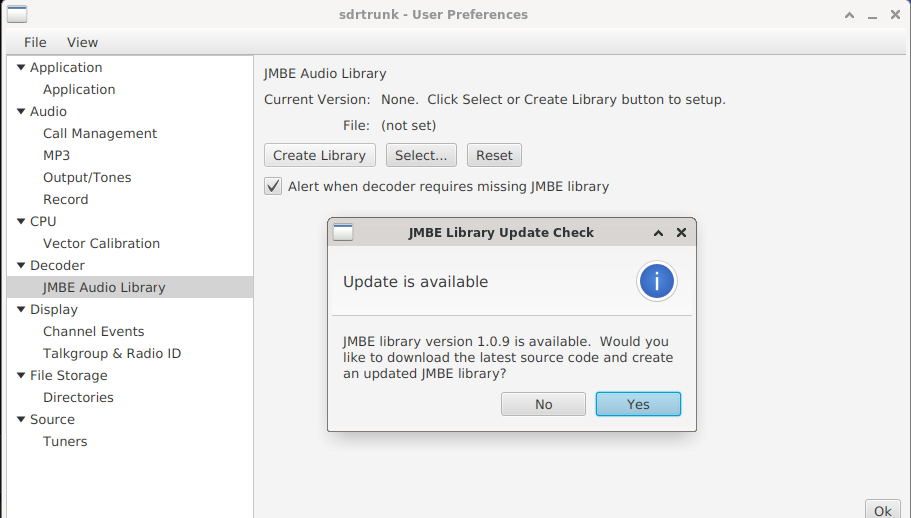
Choose Yes and choose Create Library on the screen after.
Next go to Output/Tones and test your audio to make sure you can hear the beep. If you can’t hear anything after hitting Test, make sure:
- Your speakers aren’t muted
- You have tested all the speakers listed under
Audio Output Deviceand none of them work - You can hear audio when you go on YouTube
If you have tested and confirmed all the above, and you still can’t hear anything in SDRTrunk, read the next section below Audio Issue Fixed for a possible solution. Otherwise, just skip it and continue to Setting up a Playlist
Audio Issue Fixed#
List your audio devices
aplay -l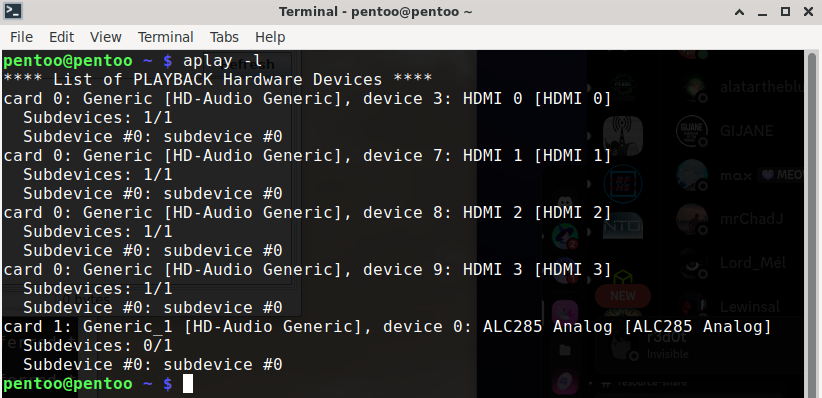
In my case, my audio device is card 1. I will now launch sdr-trunk this way:
ALSA_CARD=1 ./sdr-trunkTest the audio now, it should work! :)
You will have to launch sdr-trunk this way every time for the audio to work. However, I’m working on finding a better fix that will let you launch sdr-trunk normally. I will update this page, once I test it and it works fine.
For a good understanding of how this all works, check out Advanced Linux Sound Architecture. It’s very informative, and you might be able to find the ultimate fix.
Finding a frequency#
Now, we need to find a frequency we want to monitor. Let’s visit RadioReference
Once there:
- Click on Databases > RR Database > Browse
You will see this map
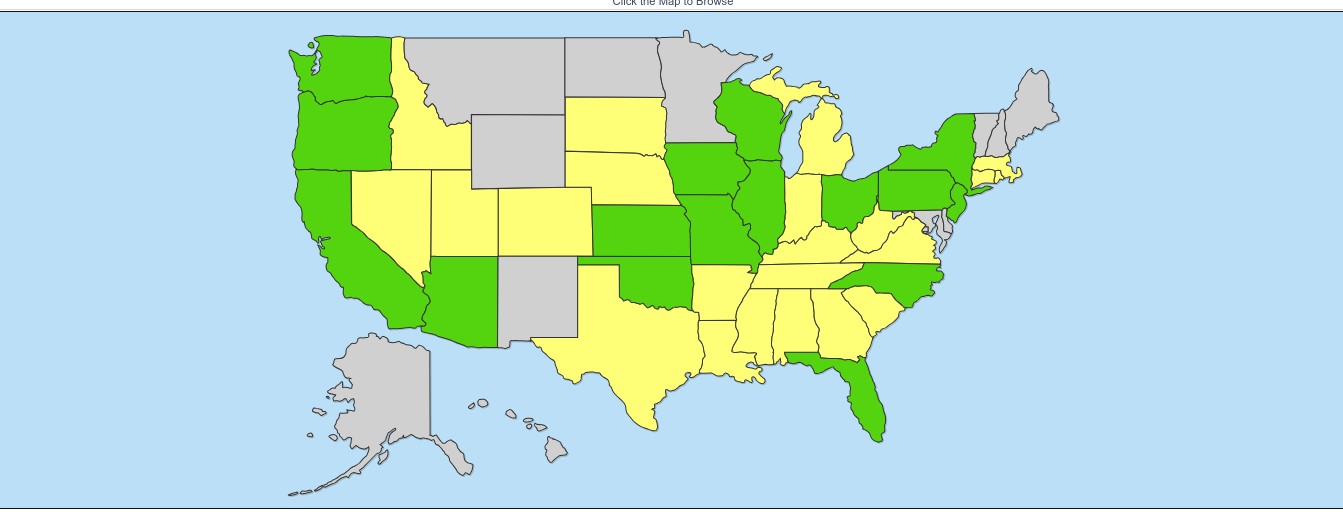
Find your state on the map and select it. For example, let’s select Virginia on the Map. It will take us here
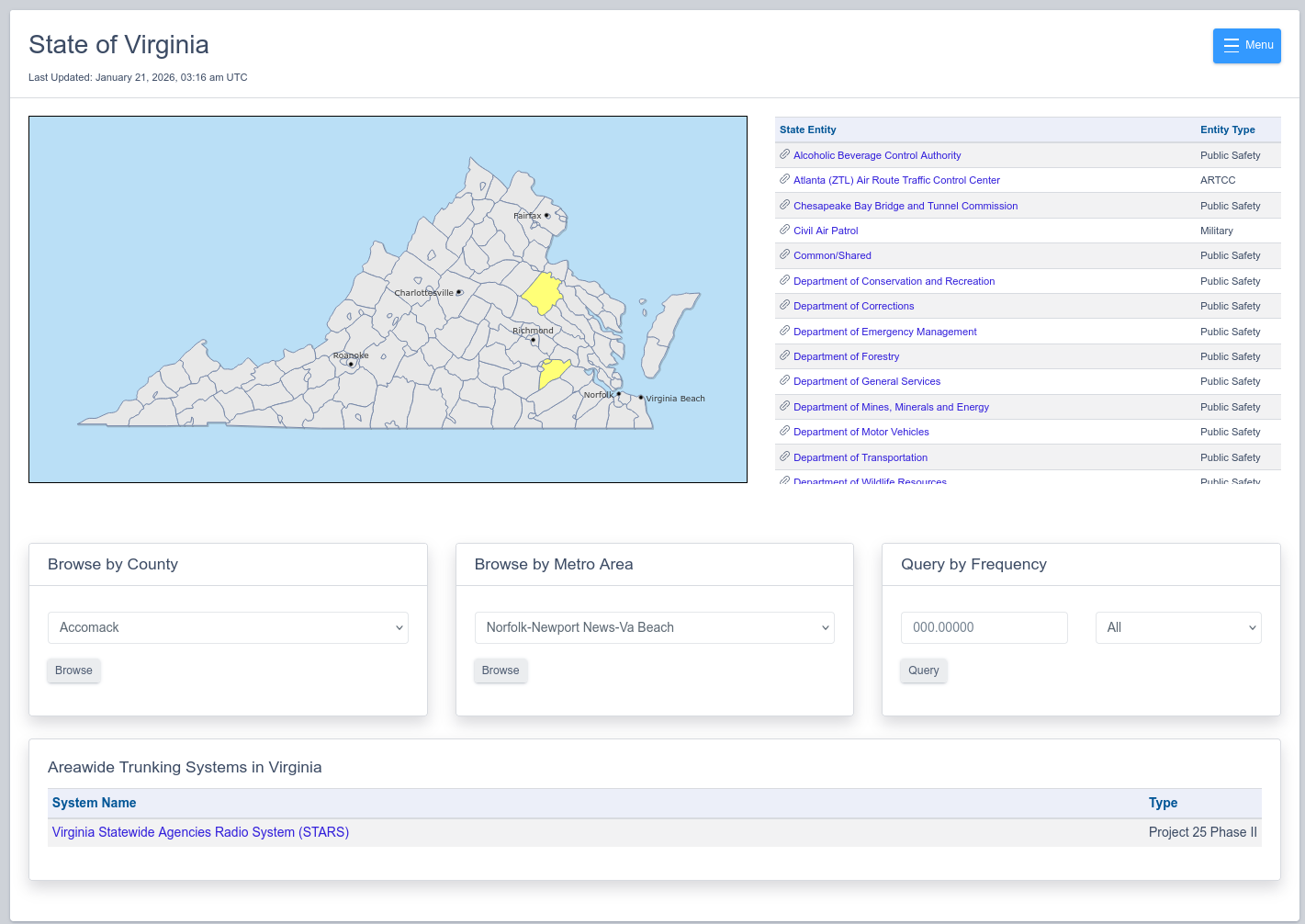
At the bottom there is the System Name, we can select it. That will lead us to the next page below
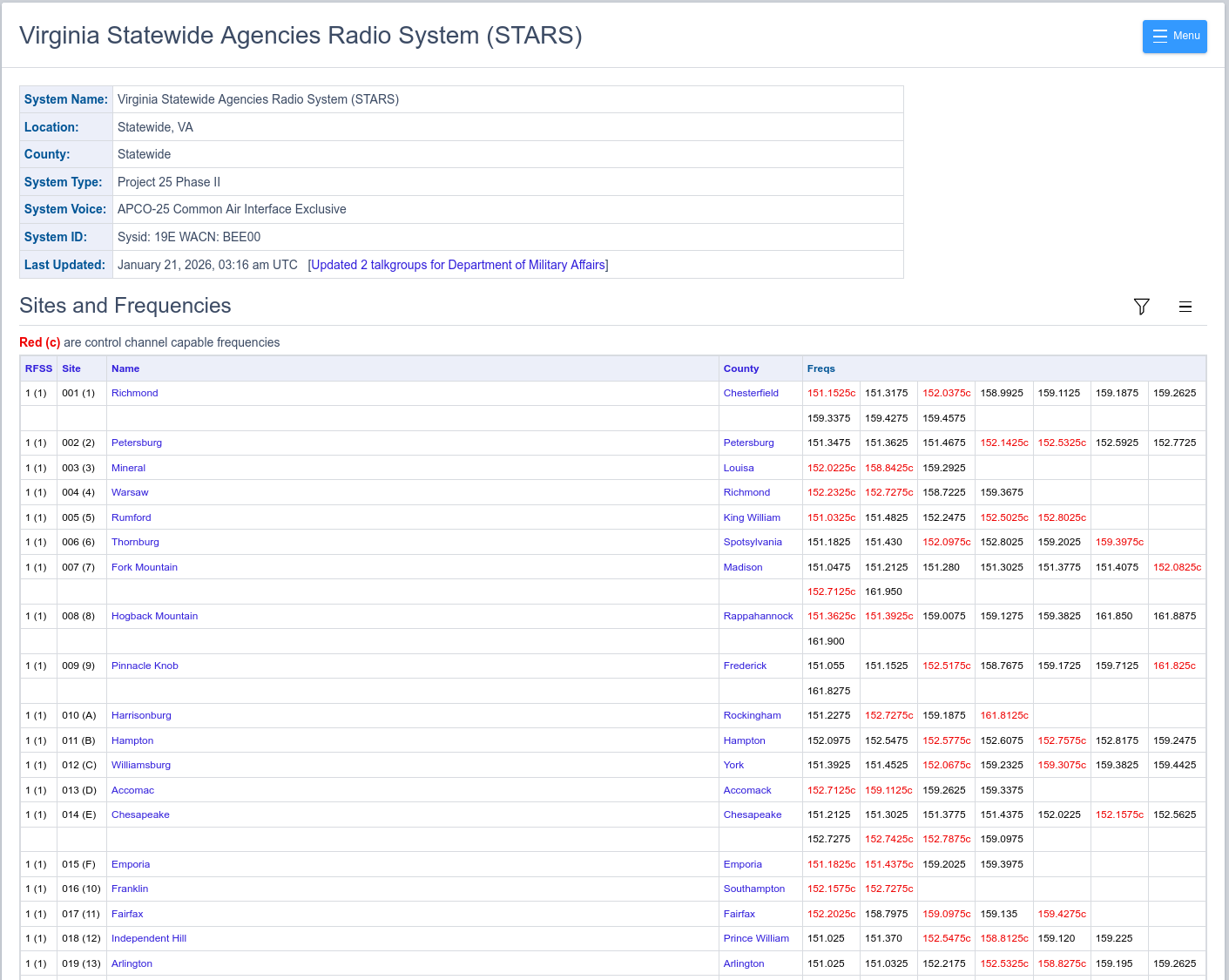
As we can see next to System Type, Virginia uses Project 25 (P25).
Now, select your county under County. Let’s select Loundoun.
On the next page, we should see something like this

We are looking for P25 under Mode. So far we are seeing, FMN and FM. Let’s keep scrolling on the page and hope we see P25.
P25 is the digital trunked radio standard used by most public safety agencies, so monitoring it lets you follow real police/fire/EMS activities.
P25e is P25 but encrypted. We should not use those frequencies.
At the bottom of the page, we found a P25 frequency: 773.40625
Now that we have our target frequency, let’s configure SDRTrunk to monitor it by creating a playlist.
Setting Up a Playlist#
From the main screen, click on Playlist Editor
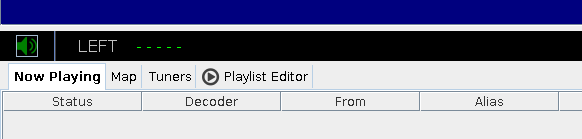
Then, click on Channels on the next screen. Next, click on … on the right side of the screen
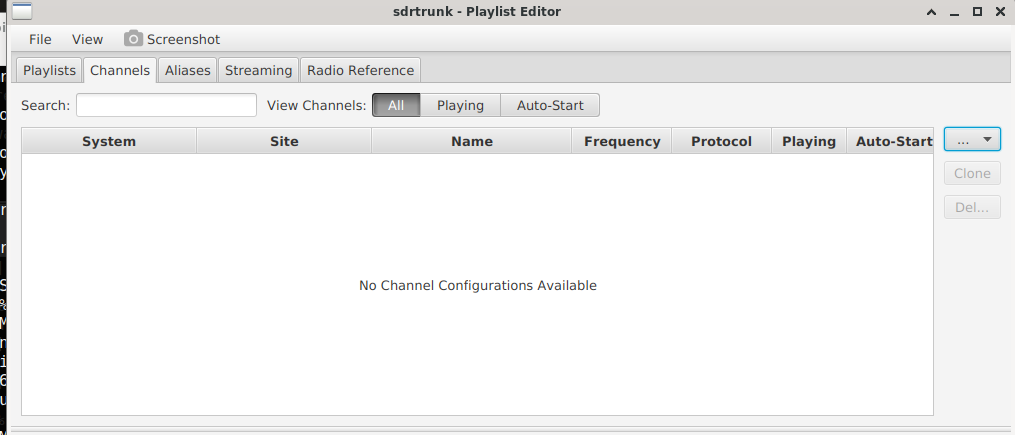
Choose P25 Phase 1, and you should see something like this below:
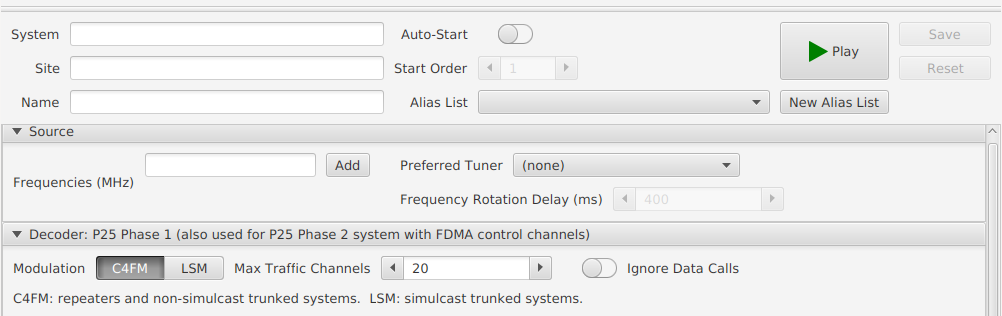
You can put whatever you want or whatever helps you organize your playlist for the following:
System,SiteandName
They are just Optional Labels. What you do want to pay attention to is the Frequencies (MHz)
Let’s put in our target frequency 773.40625. This is what our playlist looks like
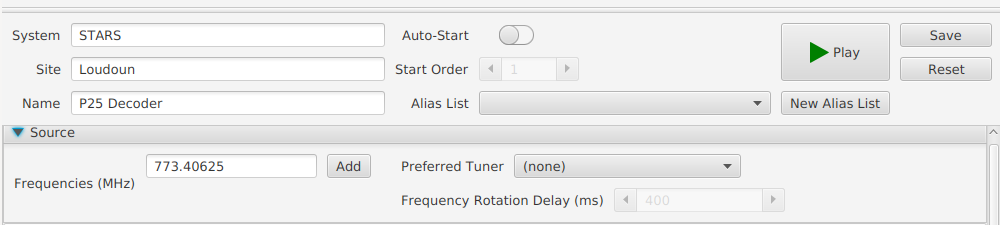
Make sure you hit save on the right and then hit Play.
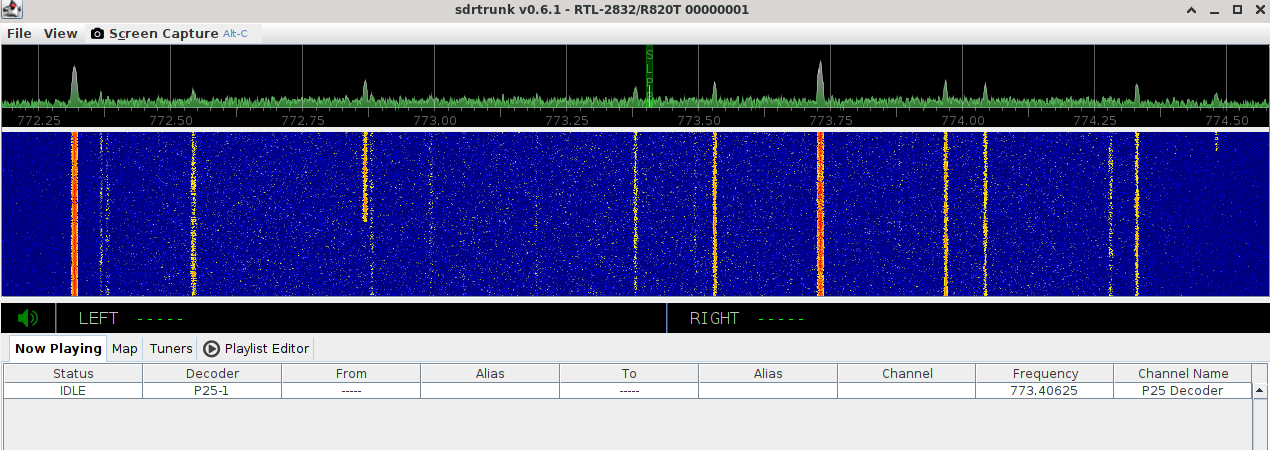
On the spectrum, it doesn’t look like there is any traffic on 773.40625.
P25 systems are often quiet depending on time/day. No one’s talking at this time on 773.40625, for example. We can try:
- Another P25 control channel freq in your area (Search on RadioReference)
- Same frequency later (evening rush sometimes = more activity)
This is what a busy frequency (when people are talking) looks like
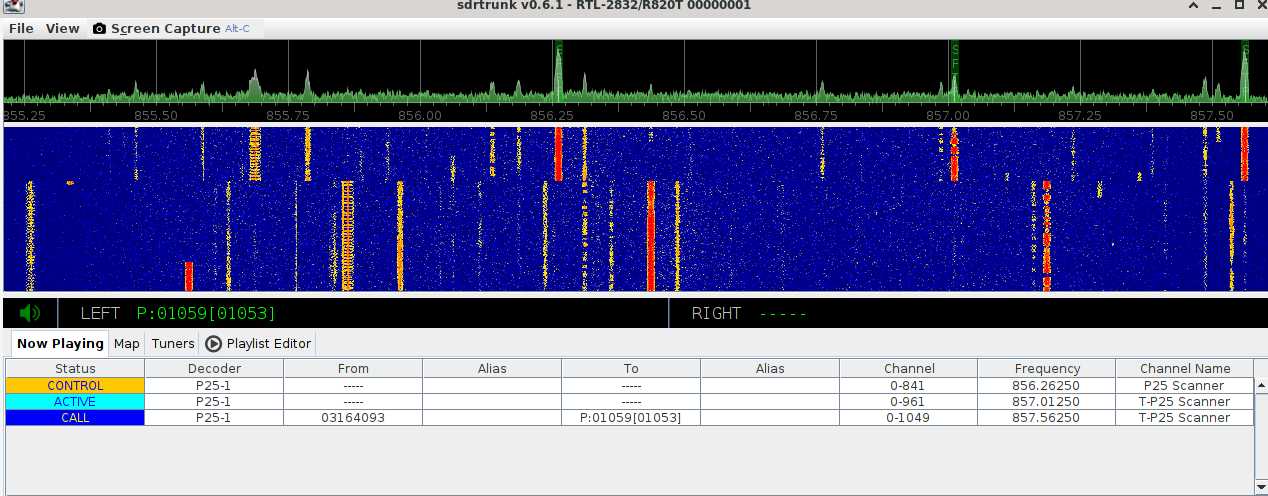
The big red line on the spectrum shows active voice transmissions. However, if a call is Encrypted you’ll see the spikes (Red Lines) but won’t hear anything, that’s normal and expected.
If you have tried everything, and still don’t get it to work. I highly recommend joining the RFHS Discord and post your question in #sdr-chat
The P25 scanner is ready. Now test different frequencies/times to catch live traffic.
If you are interested on doing this on Windows, check out Tech Dad Adventures. He does a pretty good job breaking down the steps for Windows, and goes a bit more in depth on some SDRTrunk stuff.
Have an SDR and want another project? Tracking Aircraft with Dump1090 shows you how to pull live ADS-B signals and map real-time aircraft with the same dongle.